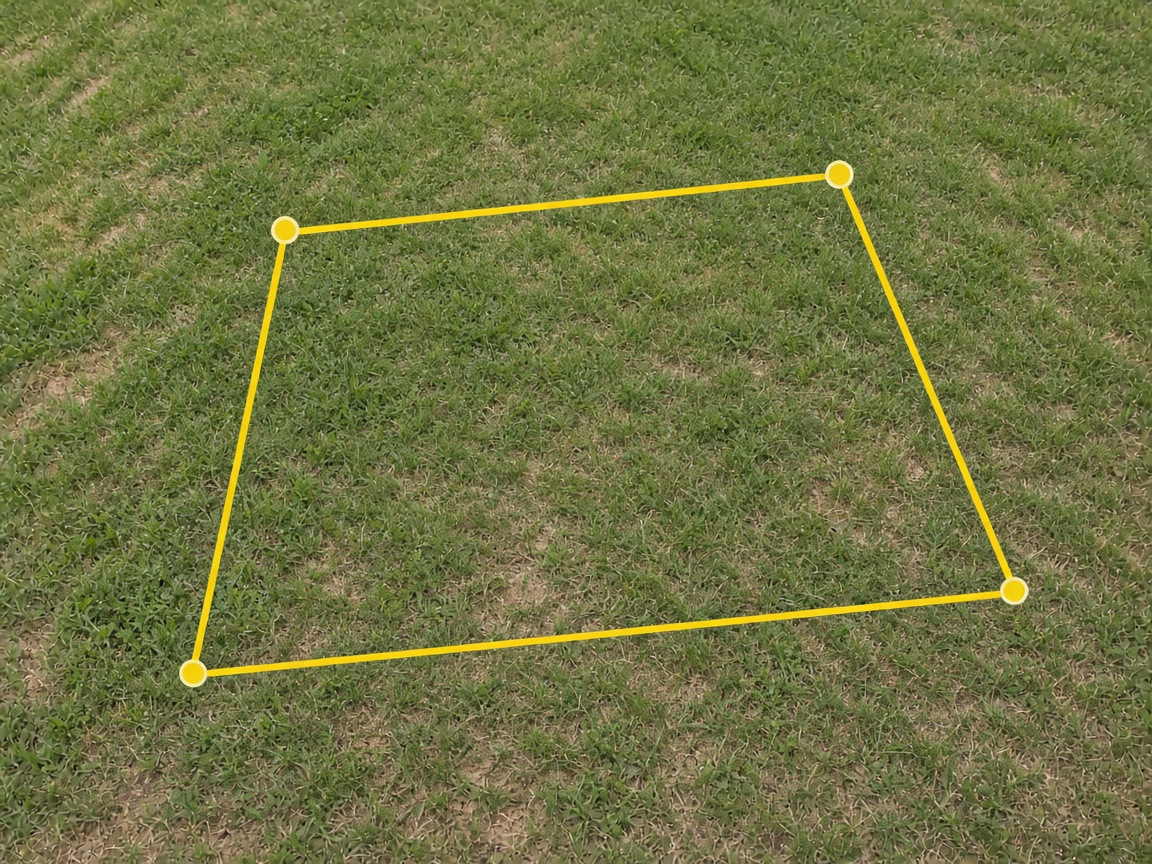
One outline, not a pile of lines
Walk the edges and close the shape. It stays a stroke — no fill — and the whole mark moves together when you drag it.
Close it. It locks.
Photo annotations
Draw the outline, drop the arrow, write the line. It stays in the job album — private until you FWD it — and the same shot can ride the invoice.
Start free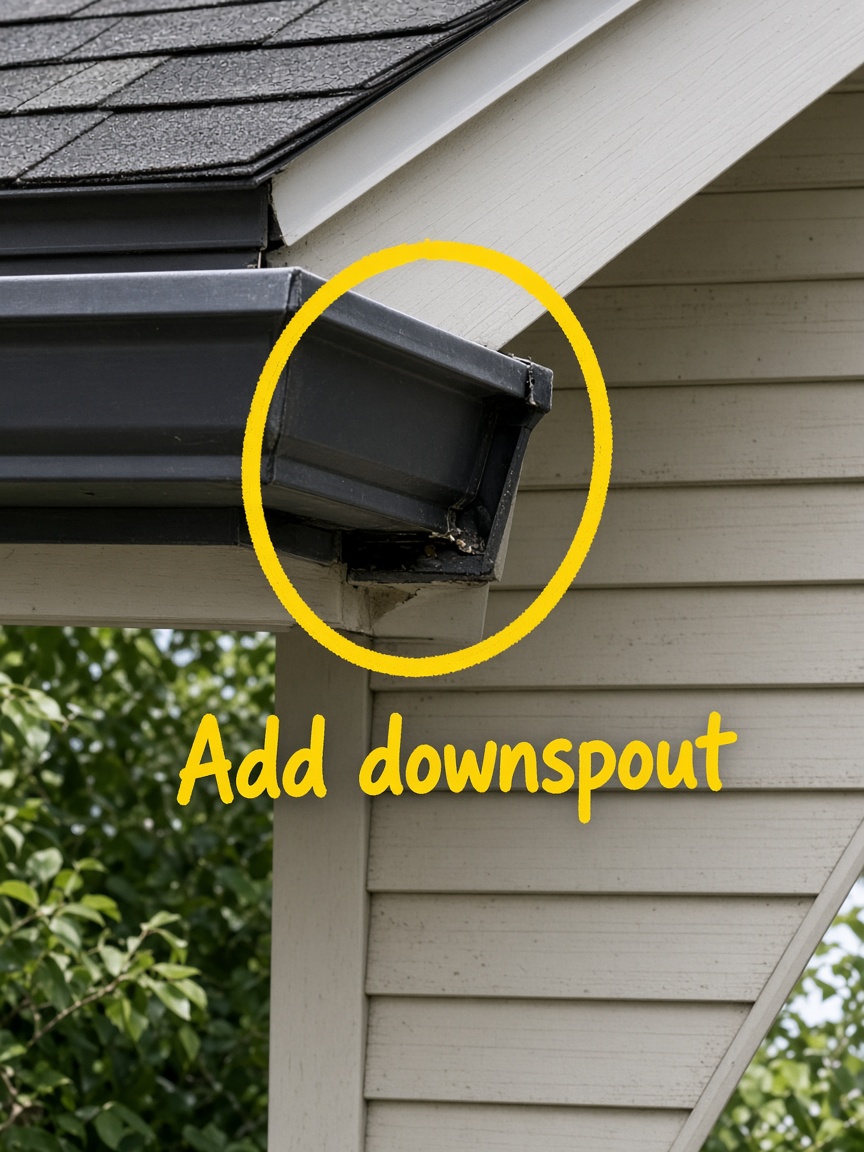
Walk the edges and close the shape. It stays a stroke — no fill — and the whole mark moves together when you drag it.
Close it. It locks.
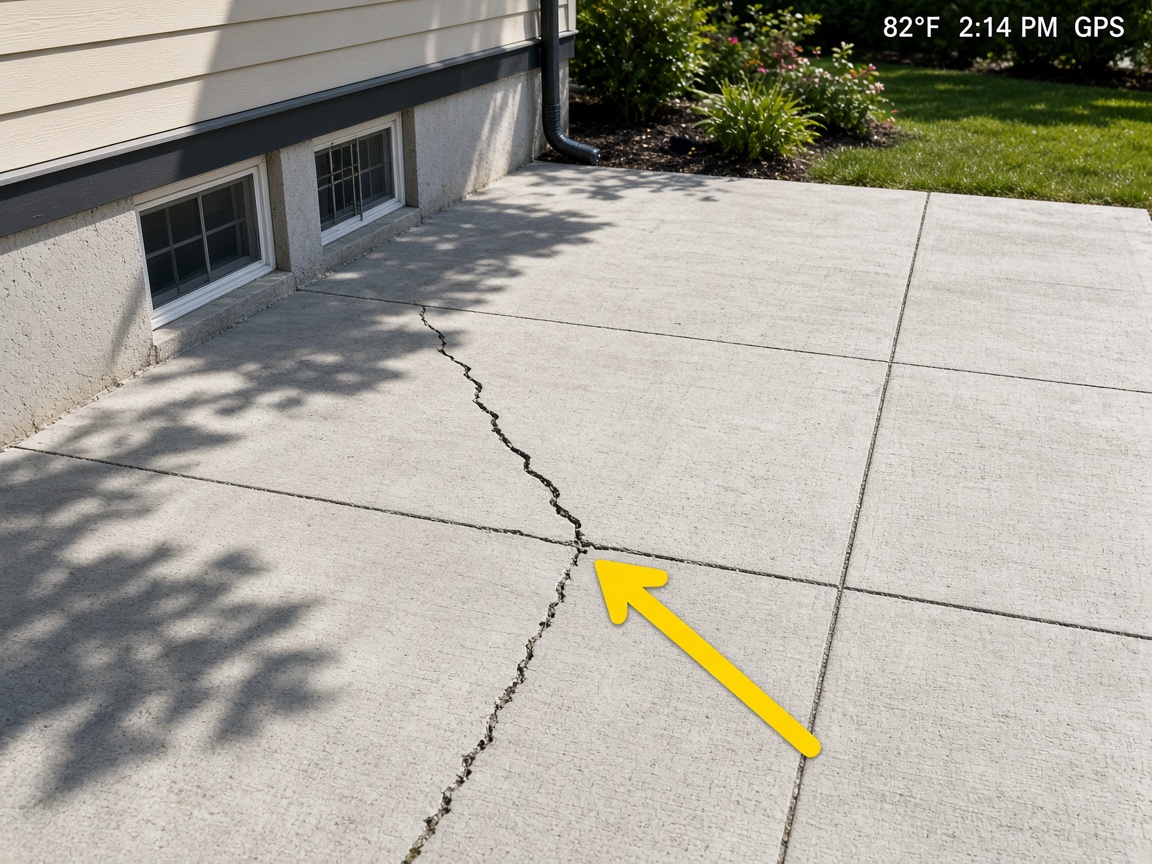
The overlay is part of the picture. When the client opens the FWD link, they still see when and where — not a naked camera-roll image.
Burned into the photo
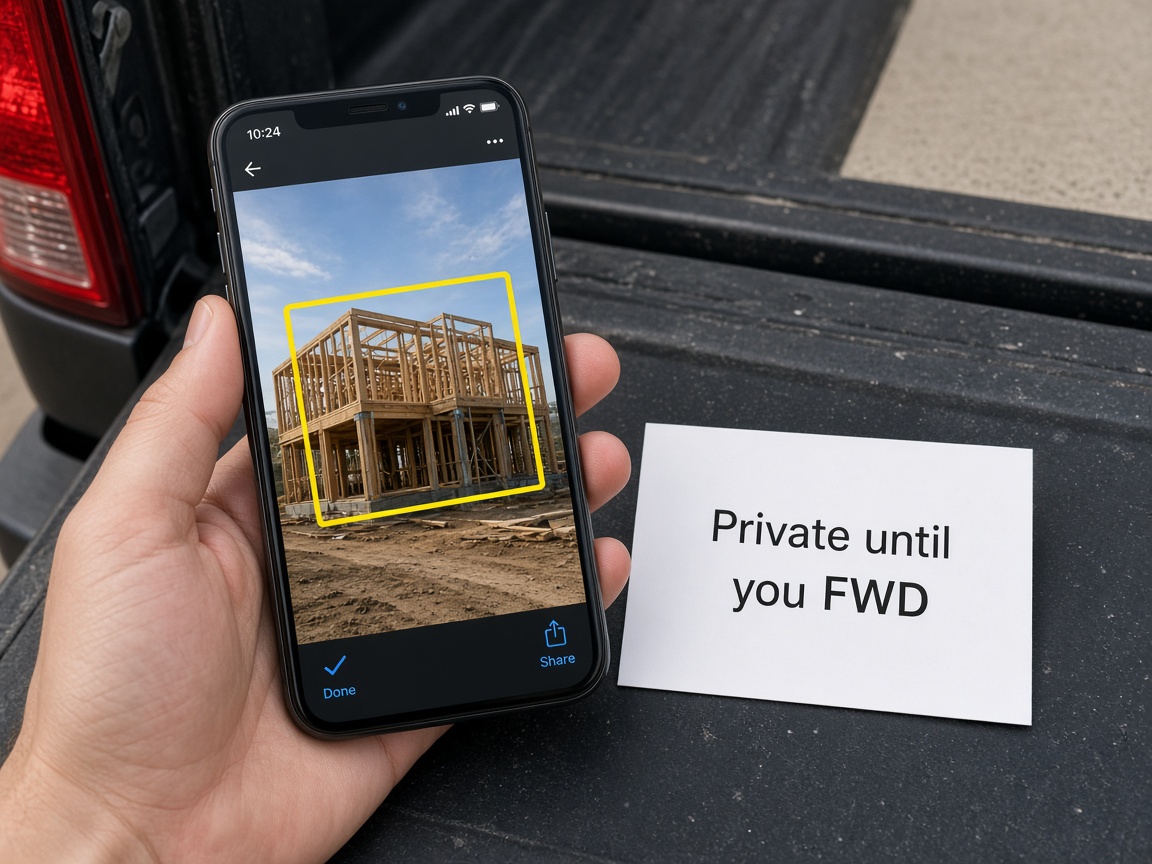
The marked photo sits in the job album. Nothing goes out until you send the live link. Turn the link off when the handoff is done.
You choose what leaves

Attach the marked photo to the estimate or the bill. The scope is the picture, not a paragraph someone has to imagine.
Photos on the invoice
Photo annotations turn a jobsite shot into a callout before you leave the driveway. Open the album for that address in the jobsite photo app, tap the photo, and draw in marker yellow — lines, arrows, closed outlines (stroke only, no fill), circles, and text. The mark moves as one shape when you drag it, so you are not fighting a pile of loose strokes. See creating and organizing albums for how albums and pinned locations keep every visit under the same street.
Markup is for the picture that already exists. When you need a blank floor plan instead of marking the camera shot, use sketch canvas on the same job address. Annotations and canvas both stay private in the workspace until you choose what leaves — the same privacy model as share links for client galleries. Weather, time, and place can stay on the overlay so the proof still reads when someone opens the link days later; sharing an album covers public, password, and invite-only links.
Field and office should read the same callout. Crew uploads land in the shared album while you control billing and client links — see invite shared albums for teammate uploads. When the homeowner is ready, FWD one live gallery URL; they open it in the browser with no app install. The marked photo is still on the job card in your CRM pipeline when you quote from the truck.
The marked shot belongs on the paperwork, not only in the album. Send an estimate with the annotated photo attached so approval is visual. Lead capture on Your Page lands new asks on that same board — quote with the markup they need to see, move the card to Won, and invoice without retyping scope in another tool. Turn on automations so a quote request pings you while you are still on the ladder.
Your Page is free to claim: real job photos, a request form, and one link for ads and bios. When you want work nearby, list on Local Pages with the same proof you already capture. Starter is free; see Plans for storage, teammates, and online payments — plans and storage overview explains what ships on Starter.
New to FWDLink? Read how it works and the full features list, or start with getting started in Help. Every path begins with one album for the address — annotate the shot, keep it private, then FWD or attach when the client needs to see it.
Albums by address, crew uploads, and stamped overlays before you mark up.
FWD the marked gallery when the client is ready — turn the link off later.
Blank-grid layouts when the photo is not the plan.
Attach annotated shots so the quote shows what you mean.
Photos and markup stay on the card from New through Won.
Show recent work and catch requests from one public URL.
Form submissions become cards you quote from the field.
When→Then paths when someone asks for a quote from your page.
Photos, page, CRM, and billing in one workspace.
Find the address album in the jobsite photo app and open the shot you need to explain.
Add arrows, outlines, circles, or text so the fix is obvious at a glance.
The annotated photo stays in the album until you FWD a share link or attach it to a document.
FWD a gallery from share links, or attach the same shot to the estimate from the pipeline card.
Invoice with the marked photo still attached so the client pays against visible scope.
Lines, arrows, closed outlines, circles, and text notes in marker yellow. Closed shapes stay stroke-only (no fill) and move together when you drag.
No. Markup stays in the private job album until you FWD a share link or send a document that includes the shot.
Yes. The same marked photo can ride the estimate, work order, and invoice from one pipeline card.
Yes. Overlay facts can stay part of the picture so clients still see when and where when they open the link.
Annotate when the camera shot is what you are explaining. Use sketch canvas when you need a blank layout — walls, dimensions, equipment moves.
Yes. Teammates with upload access share the same job album. Client-facing links are separate and optional.
Create a share link from the album. The gallery can include annotated shots; you can turn the link off when the handoff is done.
Yes. Open the job card and the album — including annotated photos — is still attached as stages change.
Yes. Build a When→Then path that starts when a visitor requests a quote from Your Page or chat, then notifies you in the app.
Starter is free — albums, markup, your page, and CRM included. See Plans for paid tiers, storage, and payment features.
The features crews use every day — photos, markup, quotes, and the page that brings the next lead in.
Explore core features →Annotations sit next to the rest of the job — photos, canvas, and the invoice.
Capture the job, keep it by address, and share a live link when you are ready.
When the photo is not enough, draw the layout on a blank canvas and save it with the job.
Send the marked photos with the quote so the scope is obvious before anyone approves it.
Start free, mark the shot, and send it with the job.
Start free