How Album lock works
Require unlock to open, Encrypted / Locked album, and Open full lock settings — what each control does.
What it is
Album lock puts a PIN on a single album, so its photos stay hidden in the app until someone enters the code — even if they're already signed into your account. You can also add a stronger option, Encrypted / Locked album, which scrambles the photos on your device before upload so nobody, not even FWDLink, can read them without your passphrase. Share links you already created keep working with their own password, separate from this PIN.
Why it helps
You pick the right level of privacy per album: a quick PIN for everyday peace of mind on a shared device, or full on-device encryption for sensitive personal photos or client work you're not ready to share. Every other album in your library stays exactly as it was.
How to use it
- 1
Open the album you want to protect from your library.
- 2
Tap the lock icon on the album to open the Album lock menu.
- 3
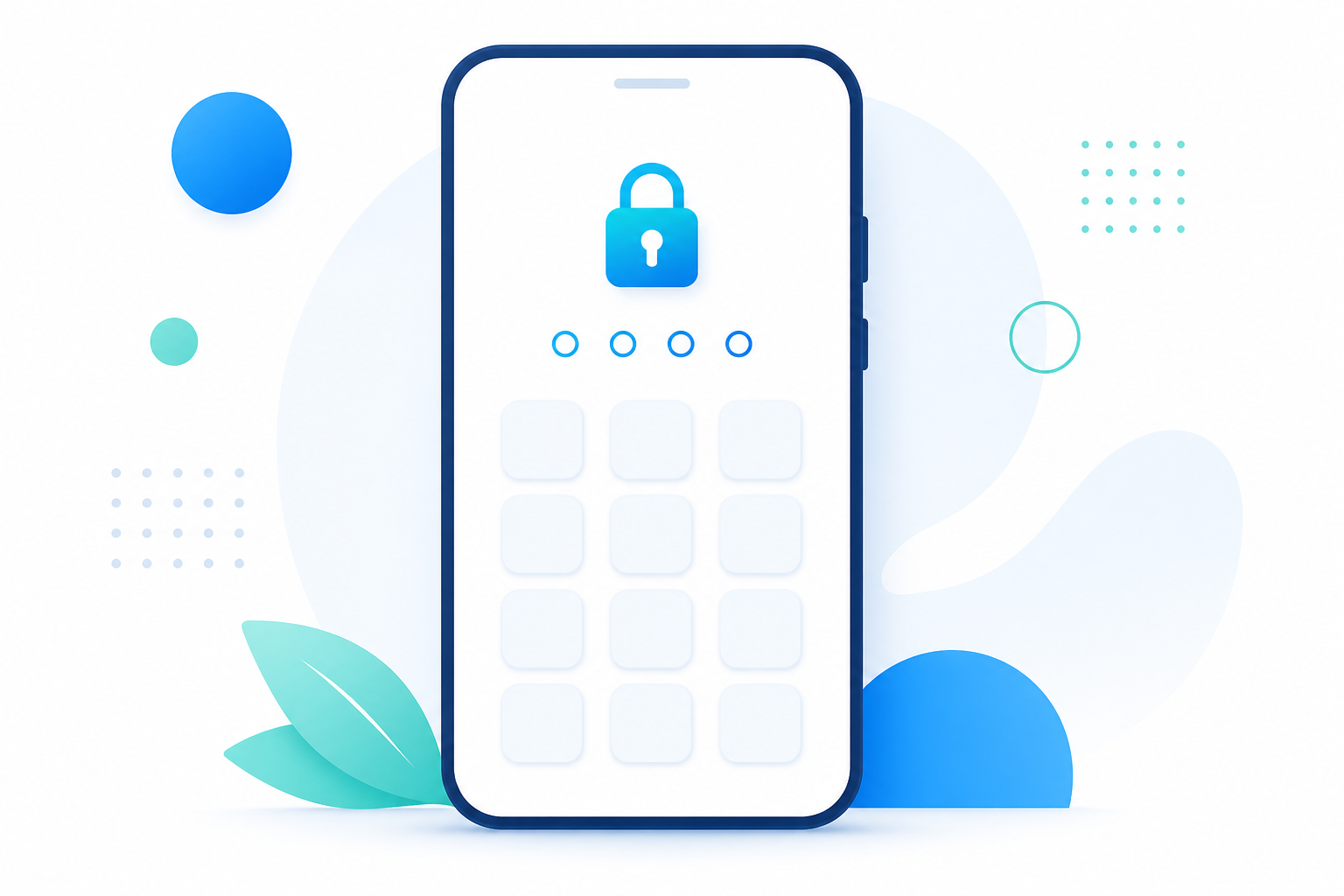
Turn on Require unlock to open. If you don't have a PIN yet, you'll set one first (4–6 digits, in Account Settings → App Lock).
- 4
Want the strongest protection? Tap Turn on encryption under Encrypted / Locked album, choose a security level, and confirm with your PIN or a custom passphrase. This makes the album private storage only.
- 5
To unlock later, just open the album and enter your PIN or passphrase when asked. To remove a lock, unlock the album, turn Require unlock to open off, and use Remove encryption… if it was also encrypted.
Details
Require unlock to open — the everyday PIN lock
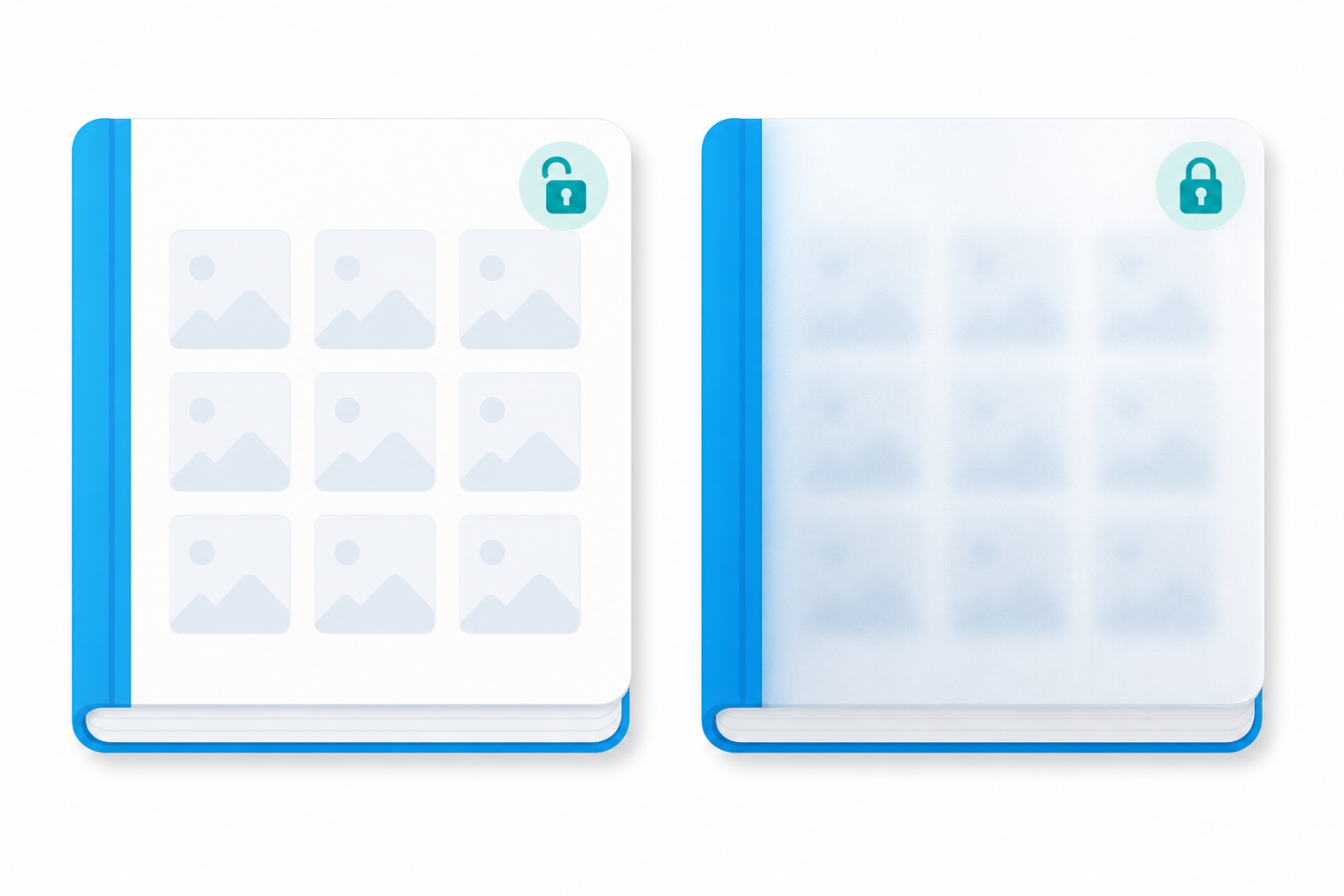
When this is on, FWDLink asks for your PIN before showing that album's photos in the app — it's a locked door, not a locked safe. Example: you leave your phone unlocked on a table; someone opens FWDLink and taps your private album — they see Unlock album and must enter the PIN first. Share links you already created keep working with their own password or access rules; this PIN is a separate, in-app layer.
Encrypted / Locked album — the heavy-duty option
Optional, per album. Photos are scrambled on your device with AES-256 before upload — other albums stay unchanged. This is private storage only: you can't create new share links or monetize this album while it's encrypted. Choose Maximum privacy (FWDLink cannot recover it if you lose your passphrase) or Recoverable encryption (still AES-256 on device, but you can recover access with an email verification code). You can use your PIN as the passphrase, or set a separate one.
What happens to share links from a locked album
Require unlock to open never touches your existing share links — anyone with the link opens it the same way as before. Encryption is the one that limits sharing: while an album is encrypted, sharing and monetization are switched off for that album until you remove the encryption.
Where to find Album lock
On album details, look for the lock control that opens the Album lock menu. You can also open the album in edit and scroll to the Album lock section, or use Open full lock settings from the menu. App Lock (the PIN used by Require unlock to open) lives in Account Settings → App Lock.
Troubleshooting
- What if I forget my PIN?
- On the unlock screen, tap Forgot PIN?, confirm with your account password, and set a new one. If the album is also encrypted with Maximum privacy, losing your passphrase means FWDLink can't recover those photos — that's the tradeoff for the strongest setting. Recoverable encryption can usually be restored with an email code instead.
- A share link still opens without asking for my PIN
- That's expected. Require unlock to open protects the album inside the app. Share links keep their own password or access rules — Album lock doesn't replace share-link settings.
- Why can't I share or monetize an encrypted album?
- Encrypted albums are for private storage only. To share or monetize again, unlock the album and use Remove encryption… — photos are decrypted on that device and stored normally again. Platform content rules still apply afterward.
- Forgot passphrase on a Recoverable encryption album
- On the unlock screen, use Forgot passphrase? Recover with email and enter the code we sent. Maximum privacy albums have no recovery if you lose the passphrase or PIN.
Related guides
- What is the Private Vault & App Lock?How vault PIN, App Lock, Album lock, and optional encryption work together for private storage.
- Set up App Lock (PIN & biometrics)Enable App Lock, set a 4–6 digit vault PIN, choose Lock after leaving, and turn on Face ID / fingerprint.
- Encrypted albums: Maximum privacy vs RecoverableAES-256 on device, what each security level means, recovery, and Remove encryption…
- Sharing from the vault: what’s allowedPassword / private share vs why monetization and share are blocked on encrypted albums.
- Forgot PIN, can’t unlock, and recoveryReset vault PIN with account password; recover Recoverable encryption with email OTP.
Try it on your page
Start free and turn this feature on when you need it.