How Album lock works
Album lock is a privacy feature for a single album. Turn it on, and that album's photos stay hidden behind a PIN until someone enters it — even if they're already signed into your account and browsing the app.
Why people lock an album
You don't need a reason to lock an album — but here are the most common ones:
- Sensitive personal photos you don't want showing up if someone else picks up your phone.
- Client work you're not ready to share yet, or that's just for your eyes.
- Personal content you'd rather keep separate from your everyday library.
- Shared devices — a family tablet, a shop computer, a laptop your team also uses.
Locking an album doesn't move or hide it from your album list. People can still see that the album exists — they just can't open it without the PIN.
Two ways to lock an album
FWDLink gives you two levels of protection. You can use either one, both, or neither:
| What it does | |
|---|---|
| Require unlock to open | Asks for your PIN before showing the photos in the app. Quick and easy — good for everyday privacy. |
| Encrypted / Locked album | Scrambles the photos on your own device (AES-256 encryption) before they're even uploaded. Nobody — not even FWDLink — can read them without your passphrase. |
Think of Require unlock as a locked door — it keeps the app from showing the photos until you enter your PIN. Think of Encryption as a locked safe — the photos themselves are scrambled, so they're private storage only (no sharing or selling access while it's on).
How to lock an album
- Open the album from your library.
- Tap the lock icon on the album.
- In the Album lock menu that opens, turn on Require unlock to open.
- If you've never set a PIN before, you'll be asked to create one first (4–6 digits, in Account Settings → App Lock).
- That's it — the next time anyone opens this album in the app, they'll need your PIN.
Want the strongest protection? On that same menu, tap Turn on encryption under Encrypted / Locked album, choose a security level, and confirm with your PIN or a custom passphrase. This keeps the album for private storage only — see the FAQ below for what that means for sharing.
How to unlock and view a locked album
- Open the album like you normally would.
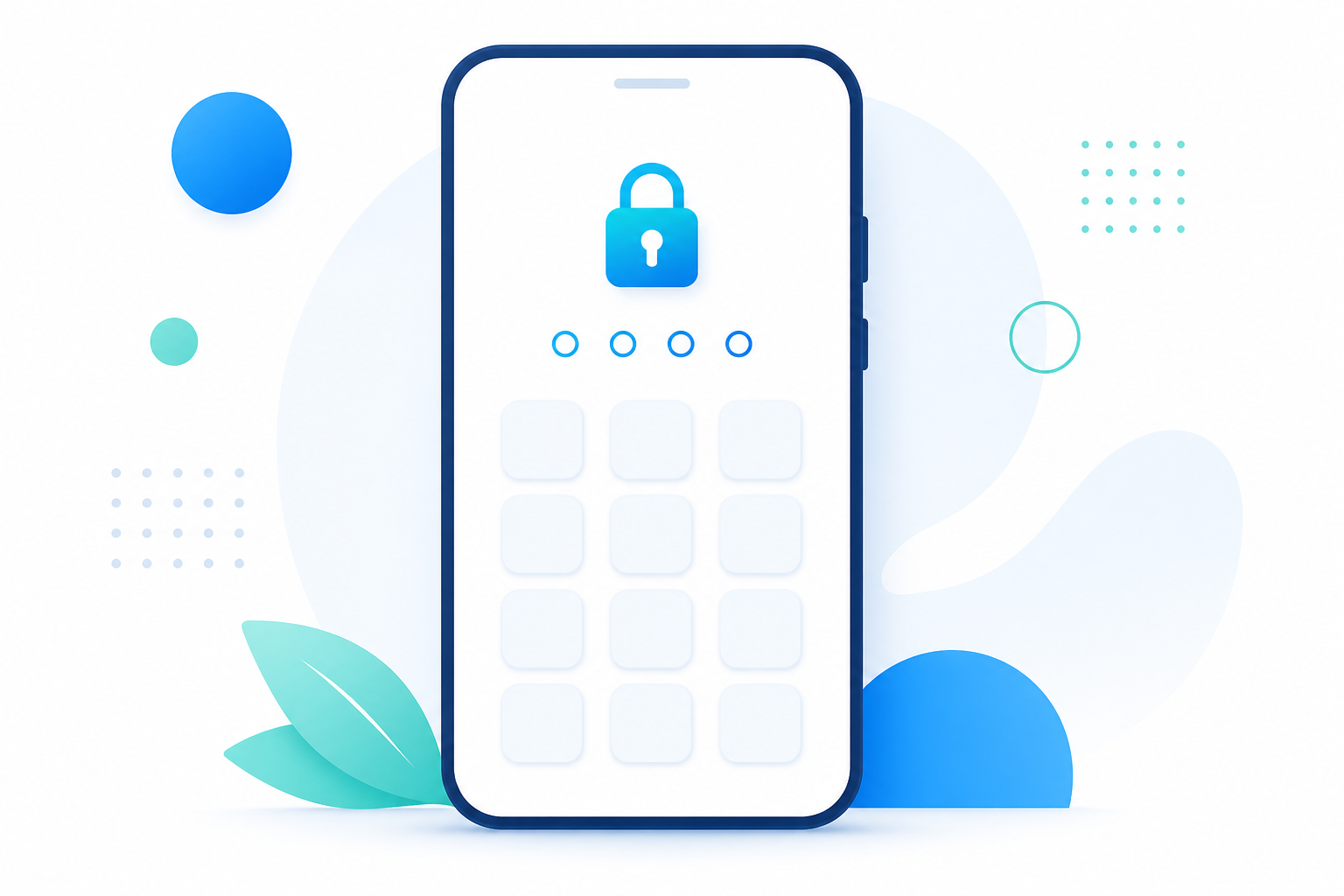
- You'll see an Unlock album prompt instead of the photos.
- Enter your PIN (or passphrase, if the album is encrypted).
- The photos appear normally — until you close the album or leave the app, at which point it locks again.
How to remove the lock
- Open the album and unlock it with your PIN.
- Tap the lock icon again, or tap Open full lock settings for more room.
- Turn off Require unlock to open — the PIN prompt is gone for this album.
- If the album is also encrypted, tap Remove encryption… and confirm. Your photos are decrypted on your device and stored normally again.
Turning off the lock only affects this album. Every other album in your library stays exactly as it was.
What happens to existing FWD links from a locked album?
This is the part people worry about most, so here's the plain answer:
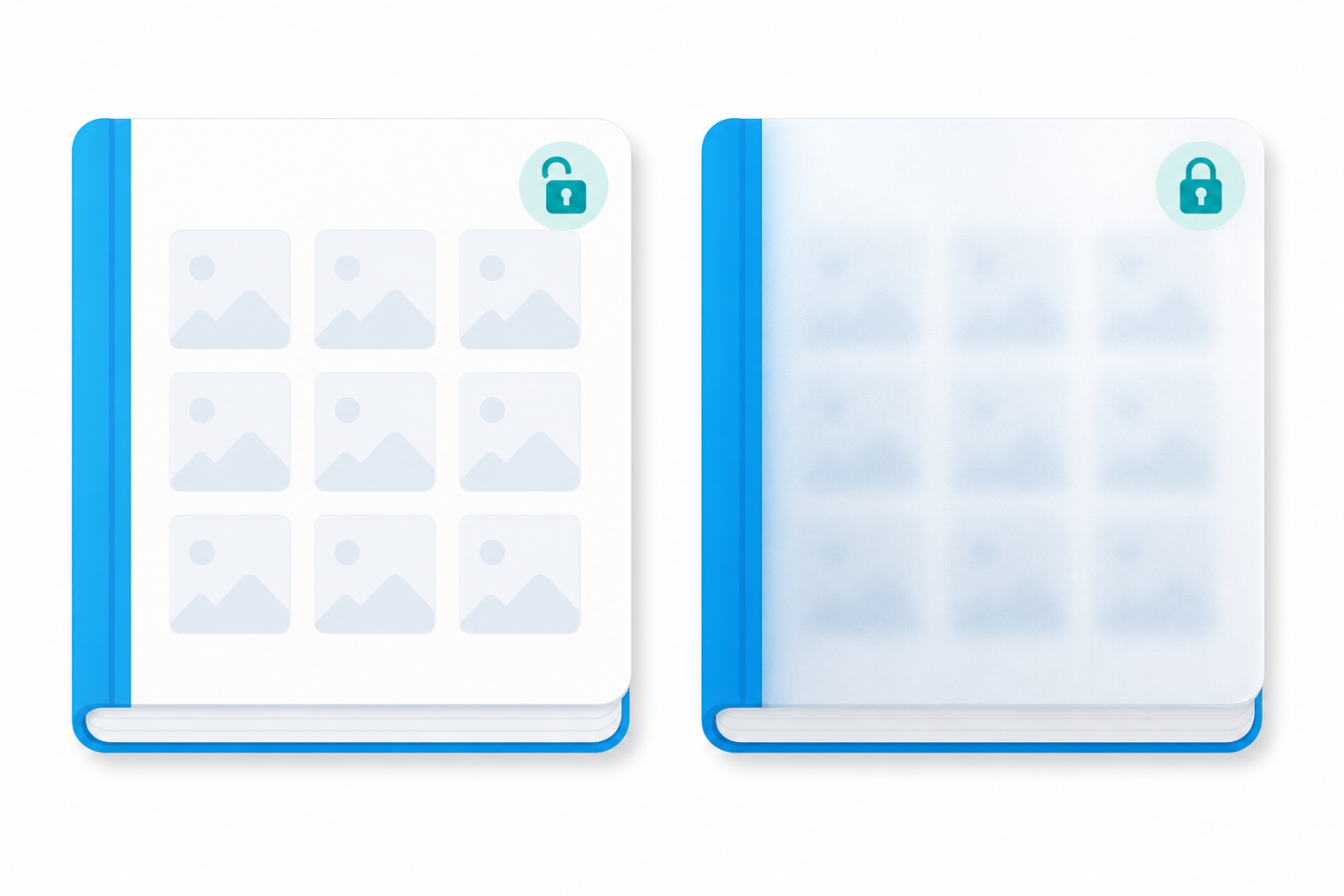
- Turning on Require unlock to open does not change any share link you already sent. Anyone with that link still opens it the same way as before, using whatever password or access rules you set on the link itself. The PIN only protects the album inside the app — it's a separate layer from your share links.
- Turning on encryption is different. While an album is encrypted, you can't create new share links from it, and sharing/monetizing that album is turned off. If you had share links from before you encrypted it, encrypting doesn't retroactively kill an already-shared link, but you won't be able to manage new sharing on that album until you remove encryption.
In short: Require unlock is about the app. Encryption is about sharing.
FAQ
What if I forget my PIN? No problem. On the unlock screen, tap Forgot PIN?, confirm with your account password, and set a new PIN. If the album is also encrypted with Maximum privacy, though, losing your passphrase means FWDLink can't recover those photos for you — that's the tradeoff for the strongest privacy setting. Encrypted albums using Recoverable encryption can usually be recovered with an email verification code instead.
Does locking an album affect existing FWD links? Not for Require unlock to open — your existing share links keep working exactly as they did, with their own password or access settings. Encryption is the one that limits sharing (see above): while encrypted, that album is for private storage only.
Can I still share a locked album? Yes, if you only turned on Require unlock to open — you can create and manage share links normally. If you also turned on encryption, no — sharing and monetization are switched off for that album until you remove the encryption.
Related guides
- Set up App Lock (PIN & biometrics)
- Encrypted albums: Maximum privacy vs Recoverable
- Forgot PIN, can't unlock, and recovery
- What is the Private Vault & App Lock?
Troubleshooting
I don't see a lock icon on my album Make sure you're the album's owner, then look for the lock control on the album details screen.
It's asking me to set a PIN before I can lock the album Go to Account Settings → App Lock, set a 4–6 digit PIN, then come back and try again.
A share link still opens without asking for my PIN That's expected. Share links use their own password or access rules — they're separate from the in-app PIN.
I can't share or sell access after turning on encryption Also expected — encrypted albums are private storage only. Unlock the album and use Remove encryption… to restore normal sharing.
Need more help? Browse the Help Center or Contact support.