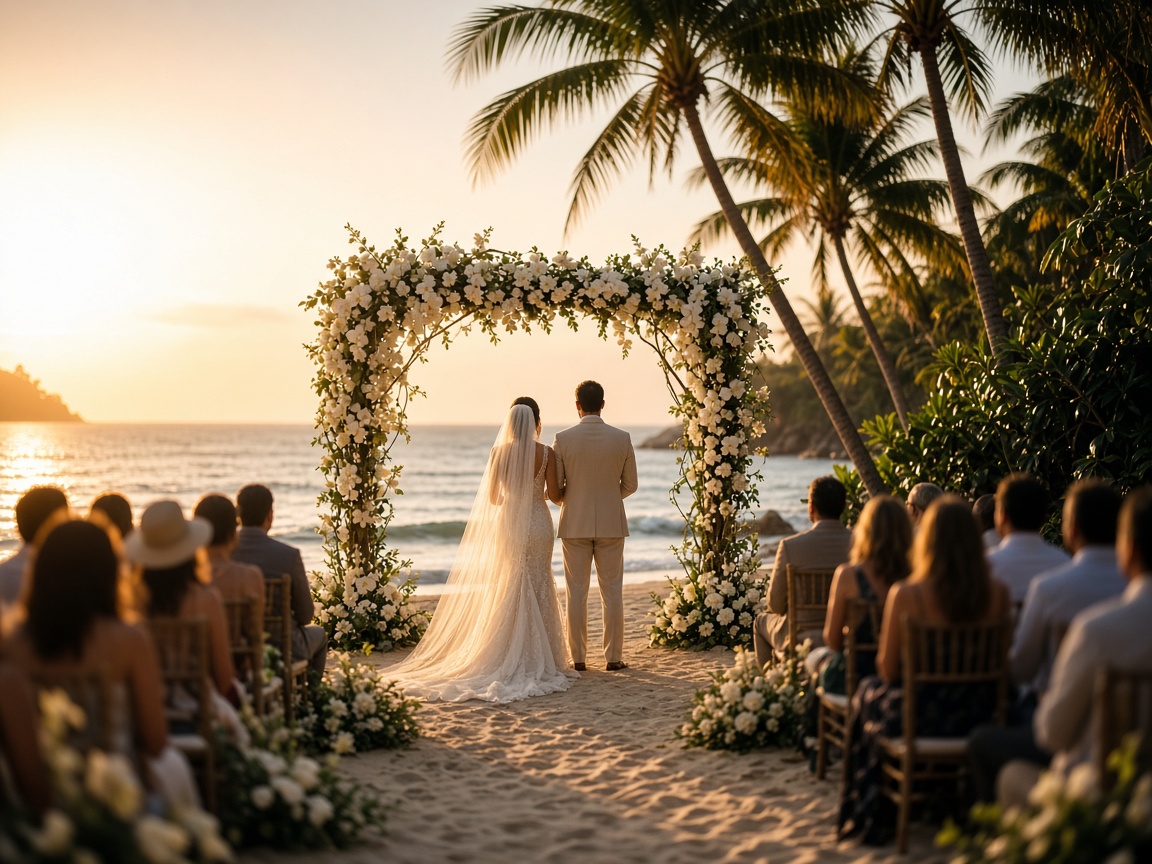
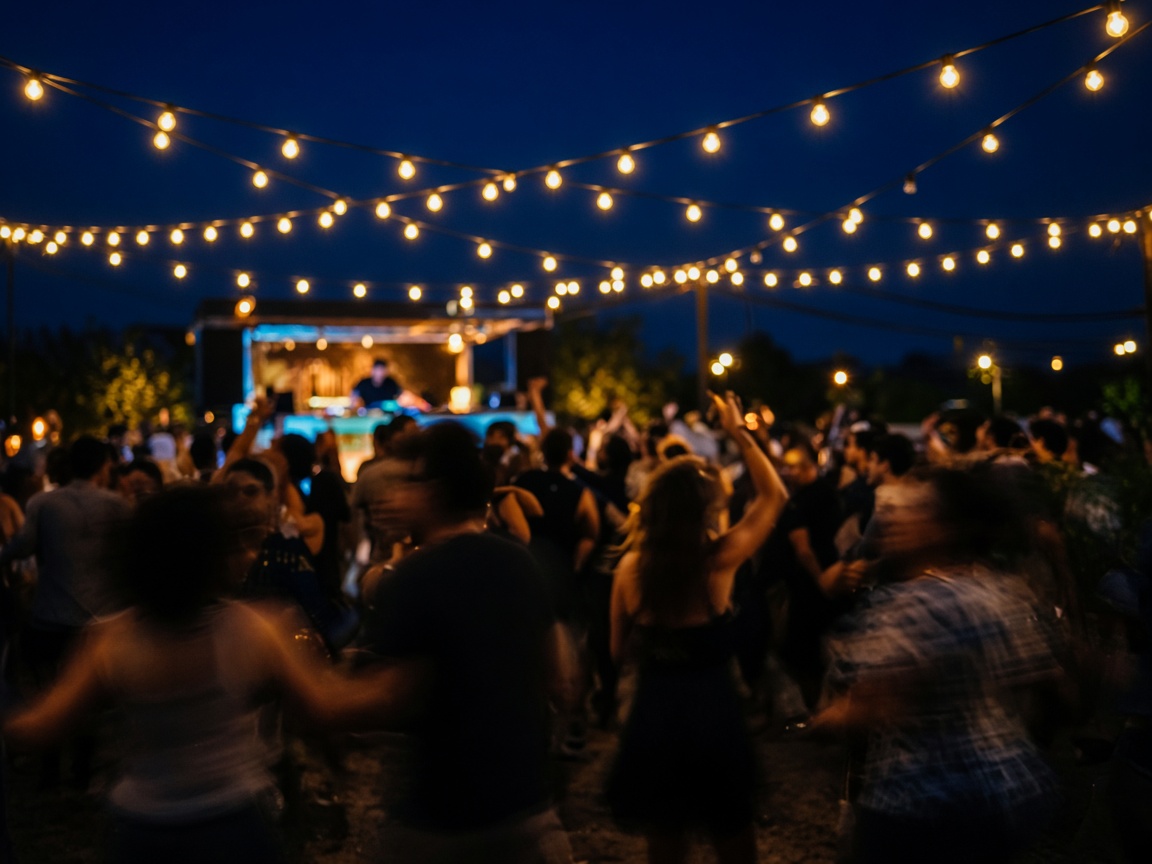
Live Screen

Photos and videos, live on the big screen

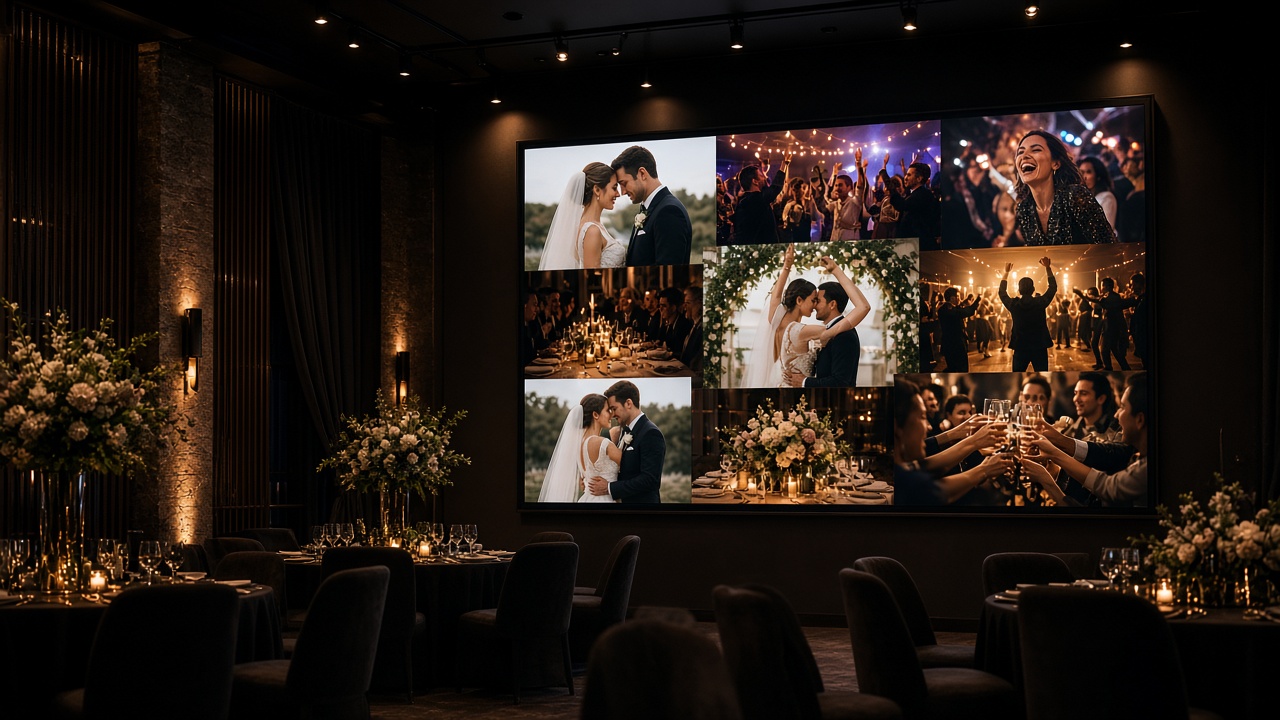
Every shot from the room hits the wall in real time. Guests scan a QR — no app — while you run Live Screen Control from your phone: hide, sync, push, and draw without leaving the floor.

  • Photos & video on the wall
  • Guests scan — no app
  • Control remote on your phone
  • Hide · sync · push · draw
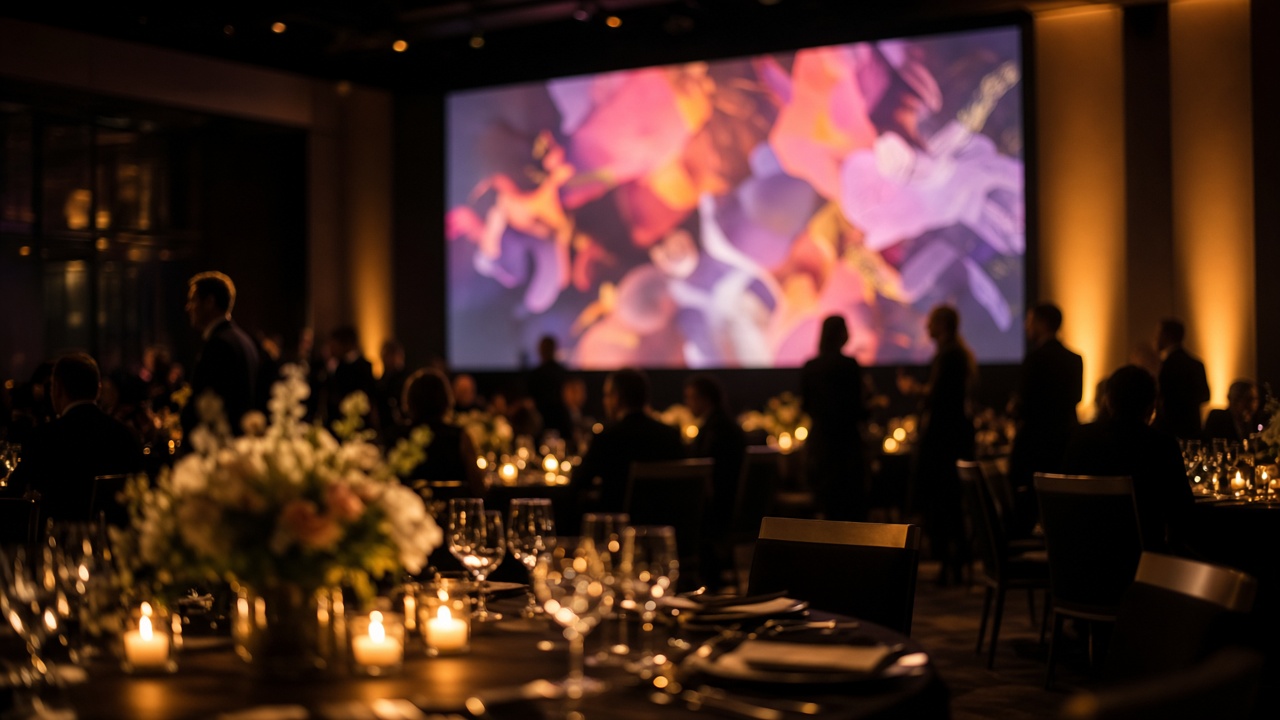
Cinematic venue with a live photo wall glowing on the big screen

No guest app

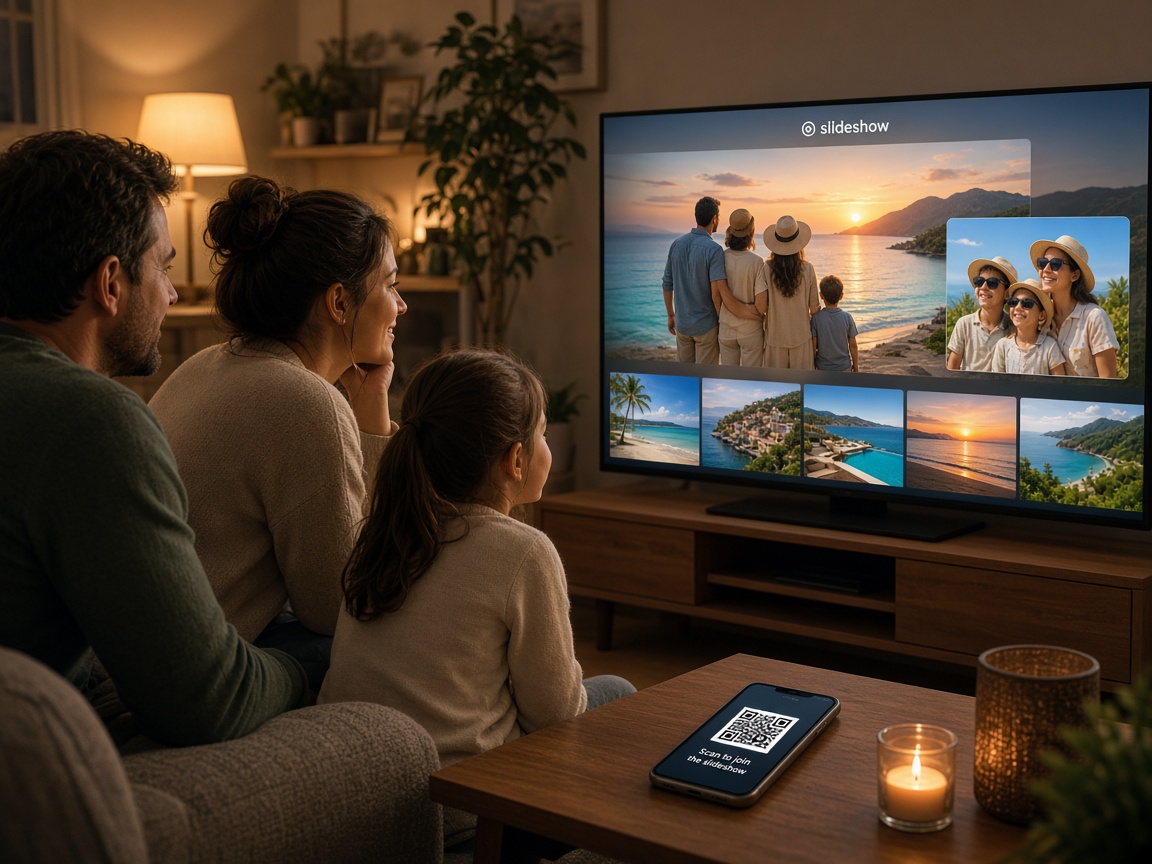
QR opens browser upload

Photos & video

Both roll into the live wall

Cast or short code

No long URL on the living-room TV

Host remote

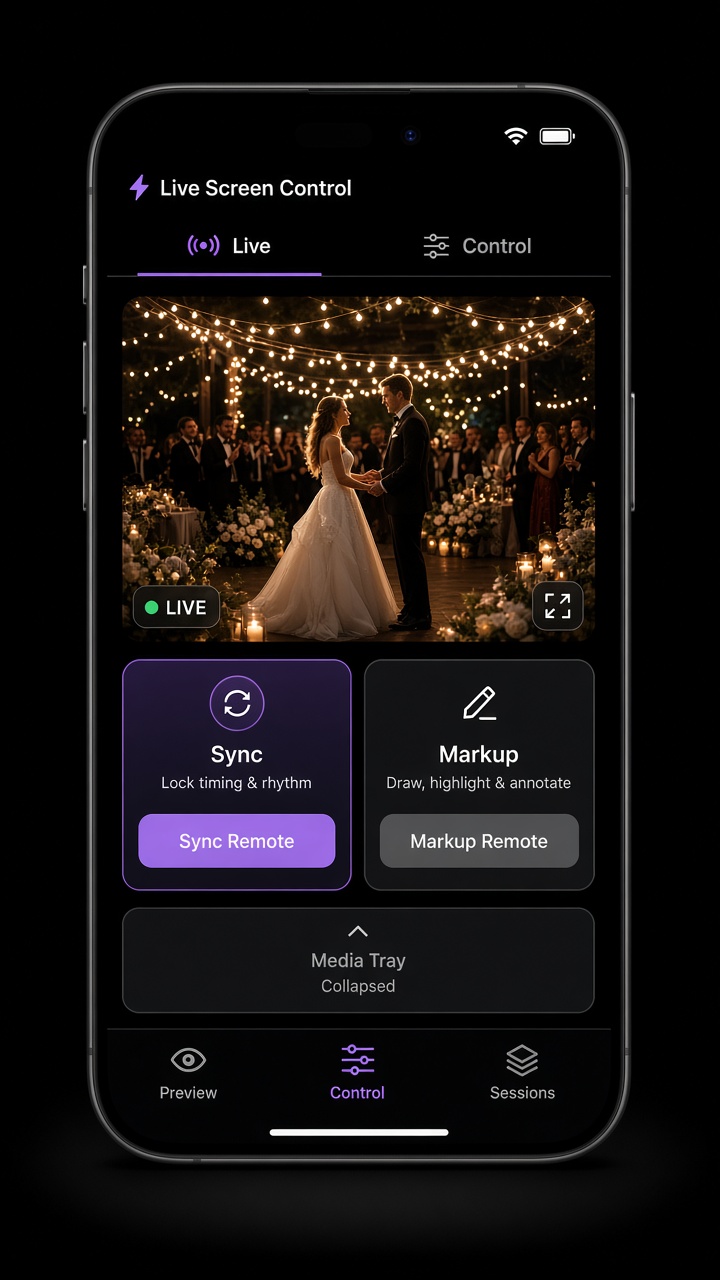
Live Screen Control in your pocket

Display + Control

The wall on the TV. The remote in your hand.

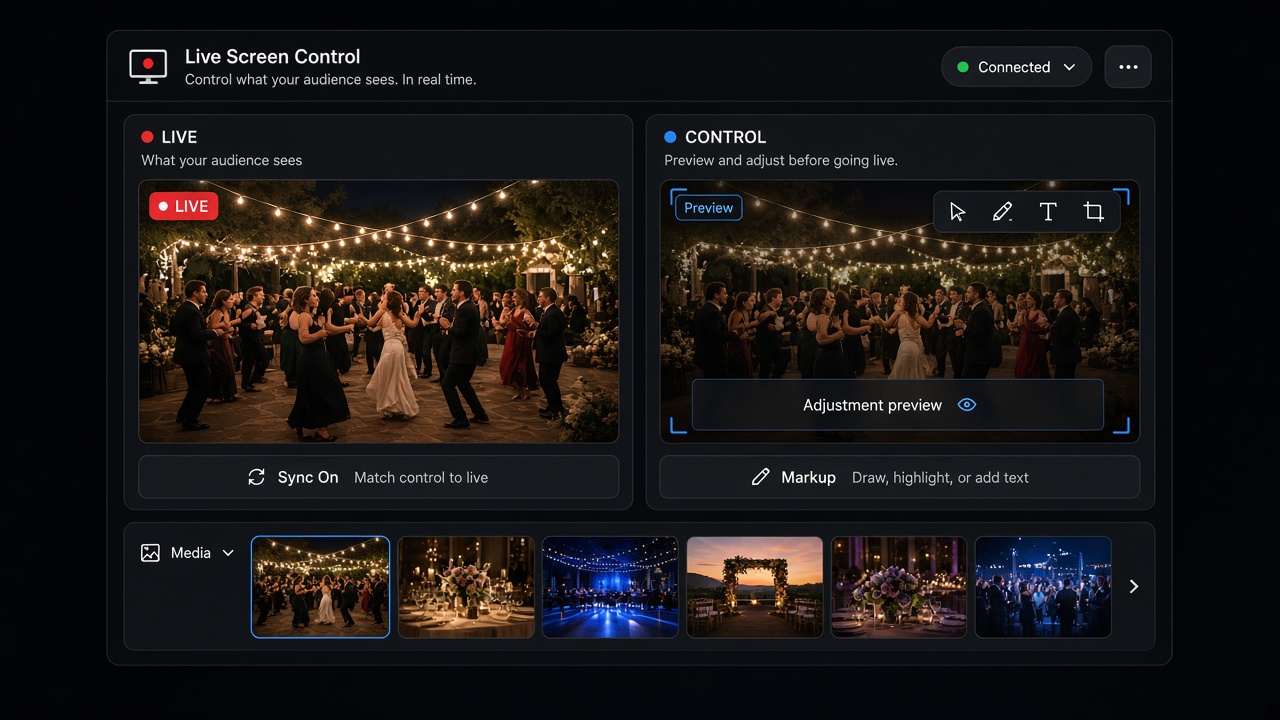
Live Screen fills the room. Live Screen Control on your phone keeps you in charge — hide a shot, sync the loop, push the next frame, or draw on the wall without walking to a laptop.

How it works

From empty room to a wall that moves with the night

One album feeds phones and the big screen. Guests upload. The room watches. You steer — cast, a short code at /tv, or Open Live Screen when you want the TV ready in seconds.

  1. 01

    Create the album

    Start a share album with guest upload on — one album powers every phone and the live photo and video wall.

  2. 02

    Light up the display

    Cast to the big screen, enter a short code at /tv, or tap Open Live Screen — no long URL typed on the living-room remote.

  3. 03

    The room goes live

    Photos and videos from QR or link land in the slideshow as they arrive — the wall updates while everyone watches.

  4. 04

    Steer from your phone

    Live Screen Control: hide from the wall, pause, sync board tools, push the next slide — stay on the floor, not at the laptop.

Use cases

Travel nights, family rooms, events, presentations — any room with a screen

One live wall for every moment that deserves the big screen — phones keep adding shots while Live Screen Control stays in your pocket.

  • Travel & family

    Trip photos and home movies on the TV while family uploads from the couch. Grandparents and kids watch the loop light up the room.

  • Live moderation

    New uploads can hit the wall instantly — you stay in charge. Hide from your phone as frames arrive; nothing leaves the album, only the screen.

  • Presentations & classrooms

    Meetings, lectures, and labs on a presentation wall. Push slides, pause for discussion, draw on the display — Control keeps you at the podium.

  • Weddings & parties

    Reception energy on the big screen — guests upload from their seats while you keep the wall celebratory and clean.

  • Parties & graduations

    Birthday and graduation walls that grow with the night — clips and photos from the crowd, family watching the projector glow.

  • Corporate events & conferences

    Session walls in ballrooms and breakouts — attendee photos and video on the big screen; pause or push when the agenda shifts.

  • Professors & labs

    Student projects, lab results, lecture captures on the projector — moderate before they hit the screen, then sync from your phone.

  • Jobsites & crews

    Progress photos and videos on a trailer monitor — annotated frames in the same live loop so the crew sees updates without passing phones.

  • Church & worship

    Lobby and sanctuary loops for volunteer moments and community photos — host control keeps the screen right for the room.

Why FWDLink

A cinematic wall. A remote that feels unfairly powerful.

FWDLink Live Screen pairs a big-screen moment with Live Screen Control — hide photos and videos as they arrive, sync pause and slides, push what comes next, and draw on the wall without deleting from your album.

Features

Control what the room sees

01

Display + Control

Live Screen vs Live Screen Control

The display runs full-screen in the room. Your phone opens Control — hide shots, pause the loop, or jump slides without walking to the laptop.

02

Stay in sync

Sync, Push, pause, and board

When you pause on Control, the wall pauses. Push the next slide, skip ahead, or sync draw tools so the room and your phone stay locked together.

03

Board & draw

Draw and board on the wall

Annotations and board tools ride the slideshow — ideal for walkthroughs, lectures, and marked frames on the big screen.

04

Guest upload

QR and link uploads hit the wall live

Guests scan or tap your link and upload photos and videos in the browser — no app install. New shots can enter the loop while the room watches.

05

Host moderation

Hide from Live Screen

Remove a photo or video from the wall without deleting it from the album — wedding-safe, classroom-safe, family-room-safe.

06

The display

Cinematic slideshow on any TV

Photos and videos from your album — optimized for distance viewing, auto-advance, and a live indicator the room can trust.

Frequently asked questions

What is a live photo wall with FWDLink Live Screen?
A full-screen live photo slideshow of your share album on a TV, projector, or browser cast — built for the room to watch while phones keep uploading.
Can I share photos to any TV or projector?
Yes. Cast from your phone, open fwdlink.com/tv and enter the short room code from Live Screen Control, Open Live Screen in a smart TV browser, or run full-screen on a laptop with HDMI — no special hardware beyond a display with a browser.
How do I set up the TV without typing a long URL?
Open Live Screen Control on your phone to see a 6-character room code. On the TV browser go to fwdlink.com/tv, enter that code, and you land on the Live Screen — no long link to type on a remote.
Do guests need an app to upload to the live screen?
No. Guest QR upload opens the share link in the mobile browser. Guests add photos and videos without installing an app; the TV side also runs in a browser.
Do photos and videos both appear on the live slideshow?
Yes. Both can roll into the live photo wall loop as guests upload — the display is optimized for distance viewing with auto-advance.
Can I control what appears on screen and hide inappropriate shots?
Yes. Live Screen Control on your phone lets you hide frames from the wall without deleting them from the album, pause the loop, and choose what stays visible to the room.
Is Live Screen good for wedding reception live photos?
Yes. Put the live photo wall on the reception TV, hand guests a QR, and moderate uploads from your phone so the dance floor sees a curated loop in real time.
Can I use Live Screen for conferences and corporate events?
Yes. Session photo walls in ballrooms and breakouts use the same share album — pause, push slides, or hide shots when the agenda changes.
How is Live Screen different from the share link gallery?
The share link is the phone gallery and upload entry. Live Screen is the same album as a big-screen live loop plus Live Screen Control — Sync, Push, Draw, and Hide from wall.
Put the night on the big screen

Create a share album, light up Live Screen, and hand guests a QR. Moderate photos and videos from your phone the moment the room goes live.